How to Build an AI-Powered Personal Assistant with Open Source Models (2026 Guide)

Written by
Sumit Patel
Published
May 1, 2026
Reading Level
Advanced Strategy
Investment
24 min read
TL;DR — What You're Actually Building
- 1Runtime: Ollama (free, runs on Mac, Windows, Linux — serves models as a local API).
- 2Model: DeepSeek-V3 (best reasoning) or Llama 4 (best generalist). Pick based on your hardware.
- 3Data layer: Read-only access to documents and notes via a local vector store (Chroma or Qdrant).
- 4Interface: Open WebUI (free, runs locally in your browser, connects to Ollama automatically).
- 5Tools: Start with file search and summarization. Add calendar read-access in week two.
- 6Guardrails: System prompt constraints + action logging before you trust the assistant with any write permission.
- 7Timeline: Working assistant in one afternoon. Well-tuned daily driver in one to two weeks.
- 8Cost after hardware: $0/month forever.
Why I Wrote This Guide (And What It Actually Covers)
Most 'build a local AI assistant' articles are one of two things: a shallow overview that stops at 'install Ollama and run ollama run llama3,' or a deep engineering tutorial that assumes you're comfortable writing RAG pipelines from scratch before breakfast. This guide is neither. It covers the real decisions a developer needs to make — which model, why, on what hardware, connected to which data, with which guardrails — in enough depth to actually implement, without assuming you've done this before. The technical claims here are research-validated against current model documentation, Ollama's official docs, and community-tested hardware benchmarks as of May 2026. I'll flag every place where your results may vary based on your hardware or use case.
In 2026, building your own AI personal assistant is no longer a weekend hackathon curiosity — it's a practical productivity decision. The open-source model ecosystem matured dramatically in the past 18 months. DeepSeek-V3 and Llama 4 running locally now produce output quality that a year ago required a paid API call to GPT-4. The tooling to run them — Ollama, Open WebUI, local vector stores — has simplified to the point where setup is measured in minutes, not days. And the reasons to build locally have only gotten stronger: complete data privacy, zero ongoing subscription cost, and the freedom to customize your assistant's behavior in ways that no cloud product will ever allow. This guide covers everything required to go from zero to a working, useful local AI assistant: model selection, hardware requirements, the Ollama setup, connecting your personal data sources, adding tool use and automation, and the guardrails you need before trusting your assistant with real work. We'll also be honest about the tradeoffs — because there are real ones — so you can make an informed decision about whether building locally is right for your situation, or whether a cloud assistant is still the better tool for your needs. If you've ever typed a sensitive business question into ChatGPT and immediately wondered where it goes, this guide is for you.
Key Takeaways
9 PointsWhat Is a Local AI Personal Assistant and What Can It Actually Do?
A local AI personal assistant is a language model running on your own hardware, connected to your personal data and given the ability to take actions on your behalf. 'Local' means the model inference — the actual AI thinking — happens on your machine, not on a vendor's server. Your questions, documents, and conversation history stay where you put them.
What a well-built local assistant can do in 2026, without any cloud involvement:
— Summarize any document you point it at: PDFs, markdown files, emails, meeting notes, research papers. — Search your notes and documents using semantic understanding, not just keyword matching. Ask 'what did I decide about the client project scope last month?' and get a real answer. — Draft emails, messages, or documents based on context it has about your work. — Answer questions about your own knowledge base in natural language. — Create reminders and structured task lists from meeting notes. — Execute narrow, defined automations: renaming files, extracting information from documents, populating templates. — Remember context within a session (and with the right setup, across sessions) about your preferences, projects, and ongoing work.
What a local assistant cannot do as well as cloud tools, at least without extra engineering:
— Real-time web search or current news (without a search tool plugin). — Multimodal tasks like detailed image analysis on smaller consumer hardware. — Tasks that benefit from the absolute frontier of model capability (GPT-4o, Claude Opus, Gemini Ultra) — local models are excellent but not yet equal on the most complex reasoning tasks.
For the daily workflow of a developer, freelancer, or knowledge worker — document work, note synthesis, drafting, code review, research — a well-configured local assistant handles 80% of what most people use ChatGPT for, with better privacy and zero recurring cost.
Why Build Locally in 2026? The Honest Tradeoff Table
The case for building locally is strongest when you have sensitive information, ongoing subscription costs that add up, or specific workflow customization needs that cloud products don't support. Here's an honest breakdown — not marketing copy.
Who Should Build Locally vs. Who Should Stick with Cloud
Build locally if: you work with sensitive client documents, legal or financial information, unreleased code, or personal health data. Build locally if you're currently spending $30+/month on AI subscriptions across multiple tools and can rationalize hardware against that spend. Build locally if you need deeply customized behavior that cloud products don't support.
Stick with cloud if: you primarily need the absolute frontier of reasoning capability (GPT-4o, Claude Opus, Gemini Ultra). Stay cloud if you can't commit a weekend to setup and ongoing light maintenance. Stay cloud if response speed is critical — a well-configured cloud API is 3–5x faster than consumer GPU inference for most models. The honest answer is that both can coexist: many developers run a local assistant for sensitive and private work, and use a cloud API (via a privacy-respecting plan) for frontier tasks where raw capability matters more than data location.
- Complete data privacy. Every query, every document, every conversation stays on your hardware.
- Zero ongoing cost after hardware investment. No $20/month, no $200/month enterprise tier, no API usage fees.
- Unlimited queries. No rate limits, no usage caps, no throttling during peak hours.
- Full behavior customization. You control the system prompt, the model, the context, the tools — everything.
- Offline capability. Works without internet. Useful for travel, secure environments, or unstable connections.
- No vendor lock-in. You can switch models, runtimes, or architectures without losing your data or workflows.
- Hardware investment required. A capable GPU setup costs $400–$1,500 depending on existing hardware.
- Technical setup time. Plan a dedicated weekend for a well-tuned setup, not a 15-minute install.
- Slower response times on consumer hardware. Expect 5–20 tokens/second vs 100+ tokens/second from cloud APIs.
- No built-in web access. Adding real-time search requires a plugin or additional engineering.
- You own the maintenance. Model updates, configuration changes, and troubleshooting are your responsibility.
- Local models trail frontier cloud models on the most complex tasks. For nuanced reasoning, GPT-4o and Claude Opus still have an edge.
Choosing the Right Open-Source Model in 2026
The model is the most important decision you'll make in this build. The wrong model for your hardware makes the whole setup frustrating. The right model for your use case makes it genuinely useful. Here's a current, honest guide to the landscape as of May 2026.
DeepSeek-V3: Best for Reasoning, Coding, and Multi-Step Tasks
DeepSeek-V3 is the strongest open-source model for reasoning-heavy tasks in 2026. It produces notably better output than same-sized alternatives on multi-step planning, code generation, data analysis, and structured reasoning chains. If your assistant needs to do complex research synthesis, write and review non-trivial code, or think through multi-step problems, DeepSeek-V3 is the right starting point.
The practical constraint: DeepSeek-V3 is a large model (685B parameters in full form, ~35B in the most commonly used quantized version). The quantized version runs comfortably on 24GB VRAM. If you have less than 16GB VRAM, you'll need a smaller model or a CPU-offloaded configuration that significantly slows inference.
Best for: developers, researchers, and power users whose primary tasks are reasoning-intensive and who have hardware capable of running a 34B+ quantized model.
Llama 4: Best Generalist for Broad Coverage
Meta's Llama 4 family is the generalist choice. Released in early 2026, it ships in multiple sizes (8B, 70B, Scout, and Maverick variants) that span the full hardware range from 8GB VRAM to high-end workstations. The 8B model is fast enough on consumer GPUs to feel like a real-time assistant. The 70B model produces quality that comfortably handles most professional writing, research, and summarization tasks.
Llama 4 also has one of the largest fine-tuning ecosystems of any open-source model, which means there are specialized variants (coding-tuned, instruction-tuned, long-context variants) available via Ollama that can be swapped in for specific use cases without touching your broader setup.
Best for: most developers starting out with local assistants who want broad capability, fast deployment, and flexibility to upgrade model size as their hardware allows.
Mistral, Phi-4, and Gemma 3: When You Need Speed Over Scale
For users with limited hardware (8–12GB VRAM) who need fast, responsive local inference over raw capability, smaller models in the 3B–8B range are the right choice. Phi-4 (Microsoft, 14B, excellent reasoning-per-parameter ratio), Gemma 3 (Google, 9B and 27B variants), and Mistral Small (22B) all offer strong performance relative to their size. These models are genuinely useful for document summarization, note search, and light drafting tasks — the primary use cases for most personal assistants. They're not competitive with DeepSeek-V3 on complex reasoning, but they run at 30–60 tokens/second on midrange GPUs, which makes the interaction feel natural rather than labored.
Best for: hardware-constrained setups, users who prioritize response speed, and anyone starting out who wants to validate the use case before committing to larger model infrastructure.
The Practical Recommendation
If you have 24GB+ VRAM or an Apple Silicon Mac with 36GB+ unified memory: start with DeepSeek-V3 (quantized) for reasoning tasks or Llama 4 70B for general use. If you have 12–16GB VRAM (RTX 3080/4070): Llama 4 8B or Mistral Small. If you have 8GB VRAM or CPU-only: Gemma 3 9B or Phi-4. All of these are installed with a single Ollama command — you can switch models in under a minute, so don't overthink this decision initially.
Hardware Requirements: What You Actually Need
Hardware is where local AI dreams often run into reality. Here are the honest requirements for different levels of use, based on current model benchmarks as of May 2026.
Apple Silicon: The Hidden Best Option for Most Developers
For developers who already own a Mac or are considering one, Apple Silicon is the most convenient local AI hardware in 2026. The unified memory architecture means your RAM and VRAM are the same pool — a MacBook Pro with 36GB of unified memory can run a 34B model with no GPU VRAM bottleneck. Ollama ships a native ARM build that uses Metal acceleration, and the community benchmark numbers for M2 Pro/Max and M3 equivalents show consistent 30–50 tokens/second on 34B models — better than most mid-range NVIDIA GPU setups at the same price point.
If you're buying new hardware specifically for local AI and have a Mac preference, an M3 Max or M3 Ultra Mac Studio is the pragmatic choice. If you're on an existing NVIDIA setup, an RTX 4090 (24GB VRAM) is the best consumer GPU for local inference as of May 2026.
Step 1 — Install Ollama and Pull Your First Model
Ollama is the runtime that makes local model management tractable for the rest of this guide. It handles downloading models, managing model files, serving a local API (compatible with the OpenAI API format), and GPU acceleration — without requiring you to configure Python environments, CUDA installations, or model-specific dependencies manually.
Installation takes under five minutes on any platform.
Step 2 — Connect Your Personal Data Sources
A model that can only answer general questions isn't a personal assistant — it's a local ChatGPT. The thing that makes a local assistant genuinely powerful is giving it context about your specific work, projects, and knowledge. That means connecting it to your documents, notes, and other personal data sources.
The architecture for this is called RAG (Retrieval Augmented Generation): your documents are indexed into a local vector store, and when you ask a question, the system retrieves the most relevant document chunks and includes them in the model's context window before generating a response. The model doesn't need to memorize your documents — it reads them at query time.
Setting Up a Local Vector Store
Two vector stores work well for local personal assistant setups:
Chroma: The most beginner-friendly option. Pure Python, no external infrastructure needed, stores data locally on disk. The pip install chromadb command is all you need to get started.
Qdrant: More performant at scale, runs as a Docker container, better filtering and metadata handling. Worth the extra setup if your document collection is large (10,000+ documents) or if you want built-in persistence without configuring Chroma's storage settings.
For most personal assistant setups under 5,000 documents, Chroma is the right choice.
Indexing Your Documents
The simplest indexing setup uses LangChain or LlamaIndex to:
1. Load documents from a folder (supports PDFs, markdown, text files, Word docs, HTML) 2. Split them into chunks (typically 500–1000 tokens with overlap) 3. Generate embeddings for each chunk using a local embedding model (Ollama includes embedding model support with nomic-embed-text) 4. Store the embeddings in Chroma
A basic indexing script in Python takes about 30 lines. Run it once to index your existing documents, then set up a file watcher (using watchdog) to automatically re-index when documents are added or changed. Open WebUI has built-in document upload and RAG support that handles steps 2–4 automatically if you prefer not to script it yourself.
What to Connect (And What Not To)
Good starting sources with read-only access:
— A specific folder of PDFs (research papers, client documents, reference material) — Your Obsidian vault or Notion exports as markdown files — Meeting notes (markdown or text format) — Your personal knowledge base or second brain content
Add later, carefully:
— Calendar (read-only via iCal or Google Calendar API) — Email (start with a specific label or folder, not your entire inbox) — Browser bookmarks and reading lists
Do not connect to start:
— Your entire file system with write access — Password managers or credential stores — Financial account access — Any source where a hallucinated action could cause real harm
The discipline of read-only first is the single most important safety pattern in this entire guide.
Step 3 — Add Tool Use and Automation
Tools are what separate a document-answering chatbot from an assistant that can take actions. In 2026, most mature local AI frameworks support tool use (also called function calling) — you define a set of functions the assistant can call, and it decides when to use them based on your query.
The key discipline: every tool you give the assistant is a risk surface. Add tools incrementally, test each one thoroughly, and keep every action logged and auditable.
Step 4 — Write a System Prompt That Actually Works
The system prompt is the invisible layer that transforms a general-purpose model into your specific assistant. Most users treat it as an afterthought. The best local AI setups treat it as the most important configuration decision in the entire build.
A production-quality system prompt for a personal assistant should include:
1. Identity and role: 'You are a personal assistant for [your name], a developer specializing in [domain]. Your purpose is to help synthesize information, draft communications, and answer questions about [your name]'s ongoing projects and knowledge base.'
2. Access context: 'You have access to [your name]'s documents, meeting notes from [date range], and calendar. When answering questions, prefer information from these sources over general knowledge.'
3. Behavioral constraints: 'When you do not have relevant information in your documents, say so clearly. Do not fabricate citations, dates, or specific details. When uncertain, ask for clarification rather than guessing.'
4. Action permissions: 'You may create reminders and draft documents. You may not send emails without explicit user confirmation of the draft. You may not access folders outside of [specified paths].'
5. Format preferences: 'Respond concisely. Use bullet points for lists of more than three items. For document summaries, use headings. For simple questions, one paragraph is sufficient.'
Revise your system prompt after every week of use for the first month. What the model does wrong consistently is almost always a system prompt problem, not a model problem.
The Most Common System Prompt Mistakes
Vague instructions: 'Be helpful' does nothing. 'When the user asks about a project, first check the documents folder for relevant notes before answering from general knowledge' does something.
No constraints: A model without explicit behavioral limits will happily hallucinate, agree with incorrect premises, or attempt actions beyond its intended scope. Explicit 'do not' instructions are essential.
No format guidance: Without format instructions, the model defaults to verbose prose for every response. Specify format preferences for different query types.
Too many constraints: A 3,000-word system prompt creates conflicting instructions and degrades response quality. Keep it under 800 words and make every instruction specific and non-redundant.
Step 5 — Test Prompts, Failures, and Guardrails
Before you trust your assistant with real work, you need to know how it fails. Most AI assistant failures fall into four categories: hallucination (confident wrong answers), scope creep (acting outside intended boundaries), ambiguity errors (guessing when it should clarify), and action mistakes (taking the wrong action with a tool). Systematic testing before deployment surfaces these failures in controlled conditions rather than discovering them on a real project.
What to Build First: The Highest-Value Starting Projects
The biggest mistake in local AI assistant builds is trying to build a full general-purpose assistant on day one. The assistant will be mediocre at everything and it'll be hard to debug why. Start with one narrow use case, get it working correctly, then expand.
Here are the three highest-value starting projects for most developers and knowledge workers, in recommended order:
1. Personal Knowledge Base Search (Day 1–3)
Index your notes, documents, and research folder. Build a simple query interface (Open WebUI works out of the box). Test by asking 30–40 questions you know the answers to. Track which ones it gets right, which it misses, and which it hallucinates.
Why this first: immediate value, fully read-only (zero risk), and it directly validates your RAG setup is working before you layer on complexity.
2. Meeting Notes Processor (Week 1)
Set up a folder where you dump meeting notes (text or markdown format). Build a prompt template that produces: one-paragraph summary, key decisions, action items with owners, open questions. Index the notes and ask the assistant 'what did we decide about X in the last 30 days?'
Why this: meeting note synthesis is where most knowledge workers waste the most time. Automating it correctly saves 30–60 minutes per week with minimal risk — notes are read-only and the output is always reviewed before use.
3. Email Draft Generator (Week 2)
Give the assistant context about your communication style and common email types (follow-ups, project updates, client questions). Build a prompt template that takes: recipient role, topic, desired tone, any relevant context from your notes — and generates a draft for you to review and edit.
Why this last: draft generation is write-adjacent (you'll be editing and sending the output), which means errors have real consequences. Get retrieval right first, then move to generation.
Keeping It Secure: Privacy and Safety Patterns
A local assistant is only private if you configure it to be. The common failure modes aren't model-level privacy leaks — they're configuration mistakes that route data through unexpected external services.
Verify No External API Calls Are Being Made
When running Ollama locally, model inference should make no outbound network calls. Verify this with network monitoring: on Mac, use Little Snitch or the Activity Monitor network tab. On Linux, use nettop or ss to observe outbound connections during inference. Ollama should only phone home for model registry lookups when you explicitly run 'ollama pull' — all inference should be entirely local.
Open WebUI similarly should make no external calls beyond what you explicitly configure (like a web search tool). Review Open WebUI's Docker container networking if you're uncertain.
Keep Write Permissions Scoped and Logged
Every write action your assistant can take should be logged to a file with timestamp, action type, parameters, and outcome. Review this log weekly. If an action appears that you didn't explicitly request, something in your tool configuration or system prompt is ambiguous — fix it before it causes a real problem. Keep all write permissions scoped to specific directories, specific calendar sources, or specific integration endpoints. Never give a local assistant permission to write anywhere it can also read — this prevents self-modification of the context it relies on.
Handle Sensitive Documents Separately
If you work with truly sensitive material — legal documents under NDA, client financial data, health information — keep it in a separate index that requires explicit invocation rather than automatic inclusion in every query. A 'general' document index for everyday work and a 'sensitive' index that you explicitly activate for specific sessions is better security architecture than a single index containing everything. This limits the blast radius of any configuration mistake or accidental log exposure.
The Full Stack: What a Production-Ready Setup Looks Like
Here's the complete architecture for a well-configured local AI assistant as of May 2026 — what each component does, and the specific tool choices that work reliably together.
Strategic Summary
Final Thoughts
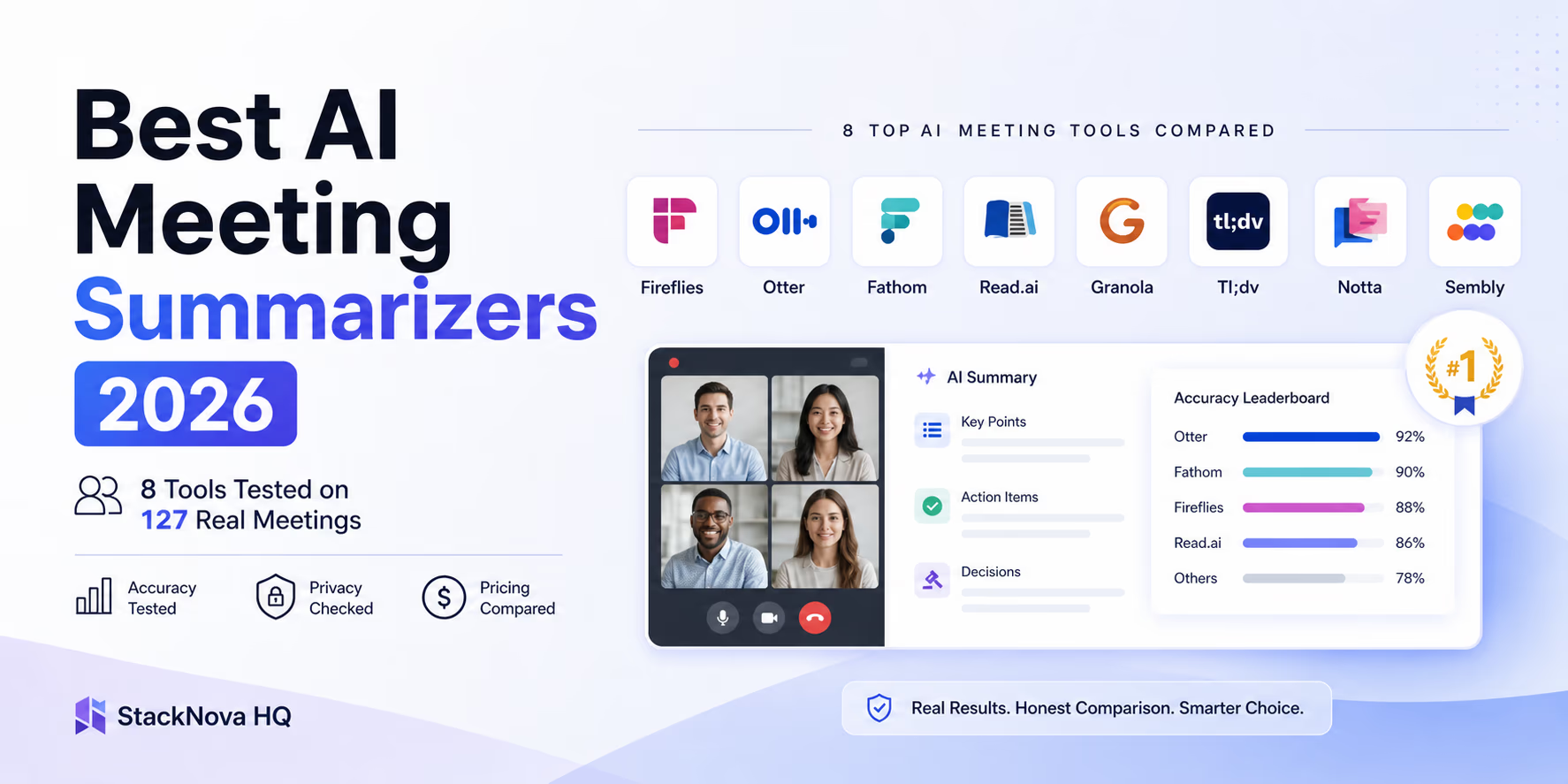
Building a local AI personal assistant in 2026 is not a weekend project for experts — it's a weekend project for any developer who can run a Docker container and edit a Python script. The tooling has matured to the point where the hard parts (model management, GPU acceleration, local API serving, document retrieval) are largely solved by Ollama, Open WebUI, and a vector store. The work that remains — prompt engineering, data source selection, tool design, guardrail testing — is interesting work that produces an assistant genuinely shaped to your workflow rather than a generic product shaped to an average user. The path forward is clear: install Ollama this weekend, pull Llama 4 or DeepSeek-V3, index your documents folder, and ask the assistant a question about something you actually want to know. That first correct, private answer — returned from a model running entirely on your hardware — is when the real potential of this becomes obvious. From there, the expansion is incremental: one new data source, one new tool, one refined system prompt iteration at a time. A local AI assistant is not something you deploy once and forget. It's something you build continuously, at whatever pace your curiosity and use cases demand — with no vendor telling you what it can and can't do. For developers who want meeting summaries flowing into their local assistant automatically, the AI meeting summarizer comparison covers the eight tools most commonly used as input sources. For those integrating local assistants into coding workflows, the best AI coding assistants comparison covers how Cursor, Claude Code, and Copilot can work alongside a local model via MCP rather than replacing it.
Install Ollama, pull one model, and ask it one question about a document you care about. The entire setup takes under 30 minutes. That first interaction is worth more than any amount of reading about local AI.
Building a custom local AI stack for a team or need help integrating local models with your existing developer workflow? Work With Me → stacknovahq.com/work-with-me
Next up
Continue your research
Sources & Research
Ollama — Run Large Language Models Locally
https://ollama.com/
Open WebUI — User Interface for Local LLMs
https://github.com/open-webui/open-webui
DeepSeek-V3 — Technical Report
https://arxiv.org/abs/2412.19437
Meta Llama 4 — Model Card and Documentation
https://llama.meta.com/
Chroma — Open Source Vector Database
https://www.trychroma.com/
Qdrant — Vector Database for High-Performance AI
https://qdrant.tech/
LlamaIndex — Data Framework for LLM Applications
https://www.llamaindex.ai/
LangChain — Framework for LLM Application Development
https://www.langchain.com/
Nomic Embed — Local Embedding Models
https://www.nomic.ai/blog/posts/nomic-embed-text-v1
Tavily — AI-First Search API
https://tavily.com/